Accessibility Testing for Beginners: A Complete Guide
Updated on January 12, 2026
What Is Accessibility Testing?
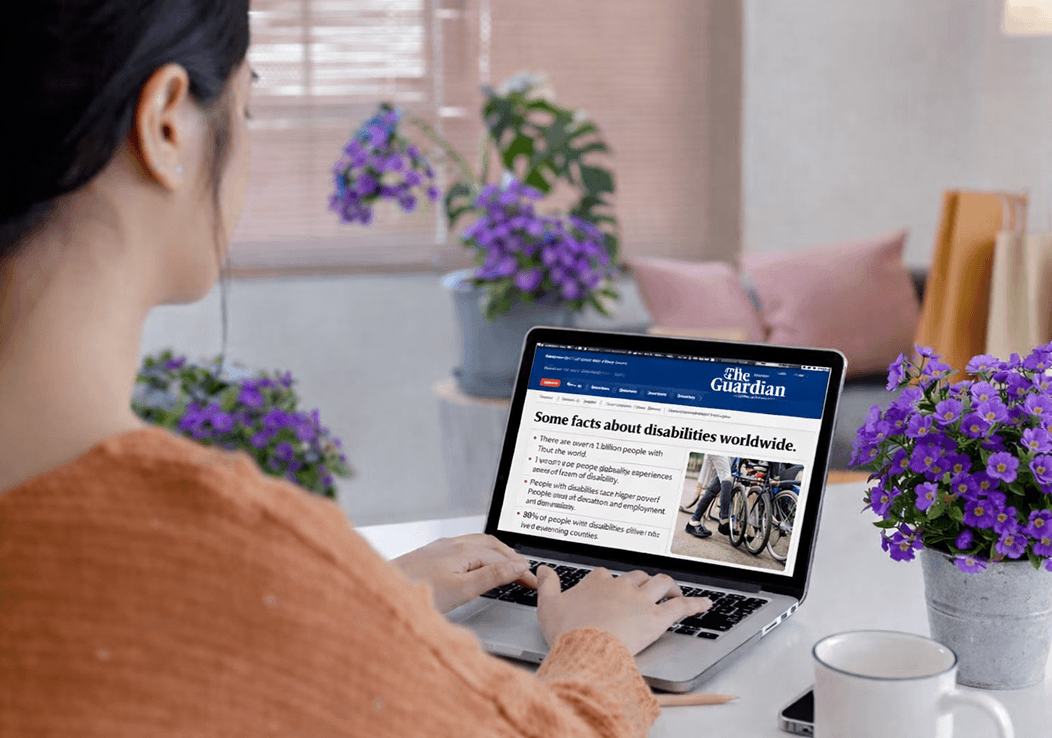
Accessibility testing is the process of checking whether a website or mobile app can be used by people with different abilities. This includes users who rely on screen readers, keyboard navigation, voice input, or other assistive technologies.
It's not just about running a scan and fixing a few errors.
How you test, what you test, and how often you repeat the process all matter.
We've been testing websites for accessibility for years. If we look back ten years, one thing is clear: we would test very differently today. Not because the guidelines were wrong, but because the way accessibility breaks in real websites is better understood now.
This guide exists to save you that learning curve.
Whether you're just starting with accessibility testing or already running checks on your site, this article shows you how to test efficiently, which steps actually matter, and how to repeat the right process every time your website changes.
That repetition is what keeps a website accessible over time.
You'll also be introduced to testing methods and tactics that experienced accessibility teams use today, based on real-world testing, real issues, and practical lessons learned from years of work.
Free Web Accessibility Checker
Enter your website URL to get a free, instant accessibility scan with tabnav's checker.

Why Accessibility Testing Matters?
Legal Requirements
In many regions, digital accessibility is required by law. Compliance with accessibility standards such as WCAG (Web Content Accessibility Guidelines) helps you avoid legal risks, including lawsuits and fines.
Wider Reach
Over a billion people worldwide have some form of disability. By making your digital products accessible, you open your website to a wider audience and promote inclusivity.
Better User Experience
Accessibility testing ensures your website is user-friendly, not just for people with disabilities, but for all users. It leads to cleaner design, better usability, and more intuitive navigation.
Boost SEO
Websites that follow accessibility guidelines, such as providing alt text for images and maintaining proper heading structure, are easier for search engines to crawl, helping to improve your site's search rankings.
Enhance AI Search
Ensuring your website is accessible by providing clear, structured content helps AI-powered search engines better understand and index your site, improving the accuracy and relevance of search results.
Types of Accessibility Testing
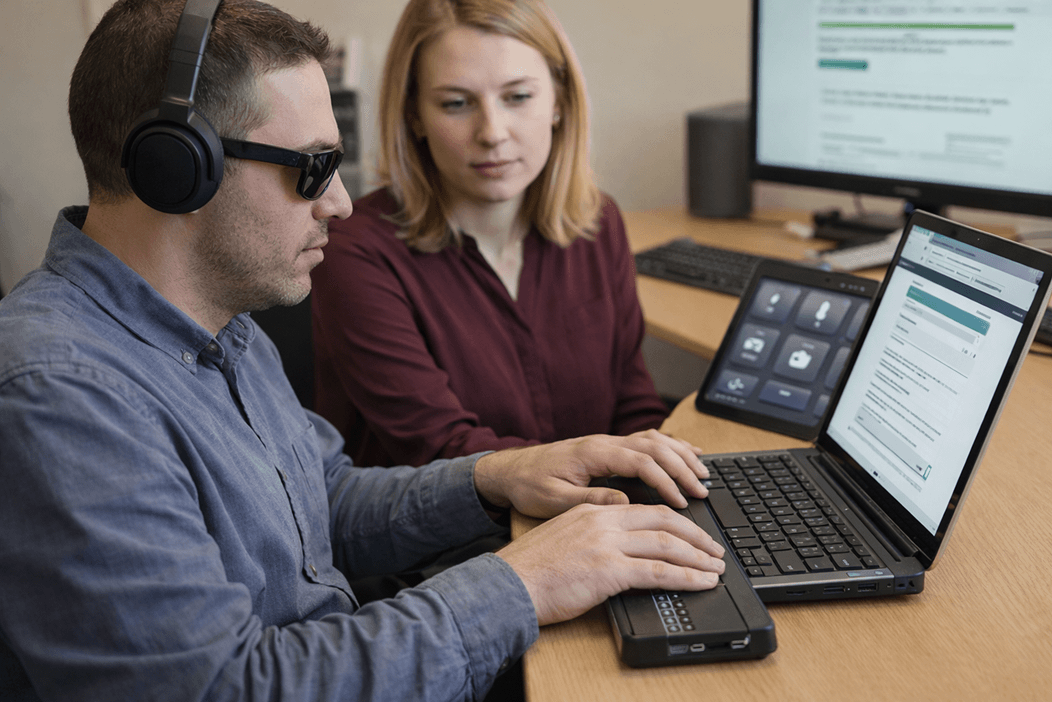
There are various types of accessibility testing that can be performed to ensure your website is fully accessible. Below are some of the most important ones:
1. Manual Accessibility Testing
Manual accessibility testing is when a tester directly interacts with your website or app to assess its usability. The tester uses assistive technologies and tools to simulate the experience of a disabled user.
Example:
- A tester uses a screen reader to ensure content is being read aloud correctly to visually impaired users.
- The tester navigates the website using only the keyboard to check if all interactive elements are accessible.
Key Benefits:
- Helps identify issues that automated tools may miss.
- Provides a human perspective on usability issues.
Challenges:
- Time-consuming and requires specialized knowledge.
2. Automated Accessibility Testing
Automated tools are software applications that scan your website or app to identify accessibility issues quickly. These tools focus on common, surface-level issues like missing alt text or low contrast.
Example:
- An automated tool checks if images have missing alt text or verifies that the text contrast ratio meets accessibility standards.
Key Benefits:
- Fast and efficient for identifying common issues.
- Ideal for large websites or ongoing monitoring.
Challenges:
- Cannot identify complex issues, like problems with user interactions or content clarity.
3. Screen Reader Testing
Screen reader testing is a critical part of accessibility testing for visually impaired users. Testers use screen readers to ensure content is properly narrated and accessible.
Example:
- A tester uses popular screen readers like NVDA, JAWS, or VoiceOver to navigate through your website and verify that all elements are properly announced.
Key Benefits:
- Ensures that visually impaired users can fully navigate and understand your website.
Challenges:
- Requires familiarity with various screen reader software, configurations and keyboard navigation flow.
4. Keyboard Navigation Testing
Keyboard navigation testing ensures that your website or app is fully navigable using only the keyboard. This is important for users with motor impairments who cannot use a mouse.
Example:
- Testers use only the "Tab" key to navigate your website and ensure that all interactive elements can be accessed and activated.
Key Benefits:
- Ensures usability for users who cannot use a mouse.
- Improves navigation flow for all users.
Challenges:
- Requires thorough testing to ensure every interactive element is accessible via keyboard.
How to Perform Accessibility Testing on Your Website
-
Step 1: Start with a Scan
Begin by scanning your website to understand where you currently stand regarding accessibility. This initial scan will help you identify common issues such as missing alt text, poor color contrast, and broken links. Automated tools are great for providing a quick snapshot of your site's accessibility status.
-
Step 2: Prioritize Fixing Issues
Once you know where the issues lie, prioritize the ones that impact user experience the most. You can either provide the detailed results from your scan to your in-house developers or contact accessibility experts to remediate the issues for you.
-
Step 3: Validate Fixes
After making fixes, it's important to validate that they've been properly implemented. Run another scan to ensure that the issues have been addressed and no new ones have been introduced.
-
Step 4: Regular Monitoring
Accessibility is an ongoing process, not a one-time fix. It's essential to regularly monitor your site, especially after updates or redesigns. Enable always-on audits through a platform like Tabnav to automatically receive compliance reports and ensure your site stays accessible over time.
Free Accessibility Testing Tools to Start Today
If you're just getting started with accessibility testing, the good news is that there are a few simple checks you can run right away. Some of them don't require any development skills and can be fixed quickly, even by designers or content teams.
Here are the easiest and most effective places to start.
1. Text and Background Contrast
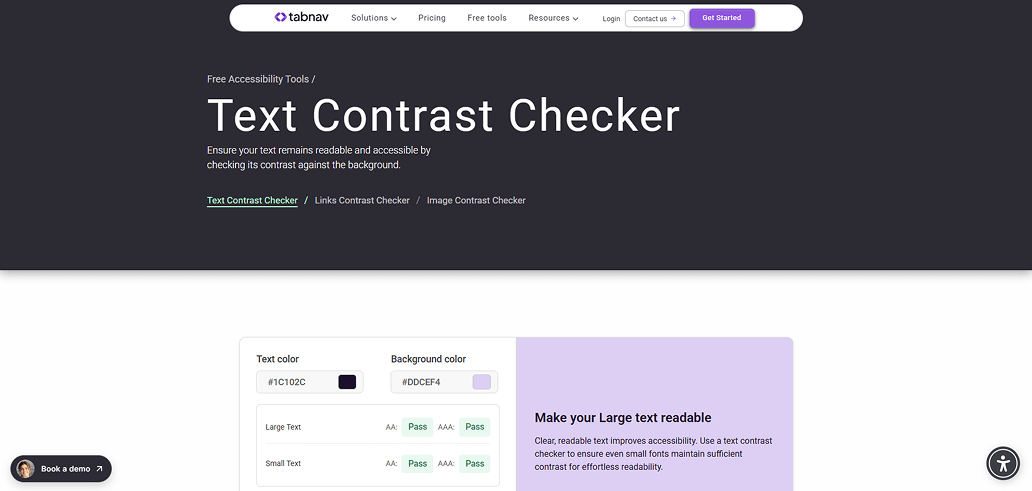
One of the simplest accessibility checks you can do is testing text against its background.
Low contrast is one of the most common accessibility issues, and it's also one of the easiest to fix. In many cases, adjusting a color slightly is enough to pass accessibility requirements.
You can use Tabnav's free contrast checker to test text against its background color and instantly see whether it meets accessibility standards.
This is a great starting point because it's fast, clear, and actionable.
2. Link Contrast and Surrounding Context
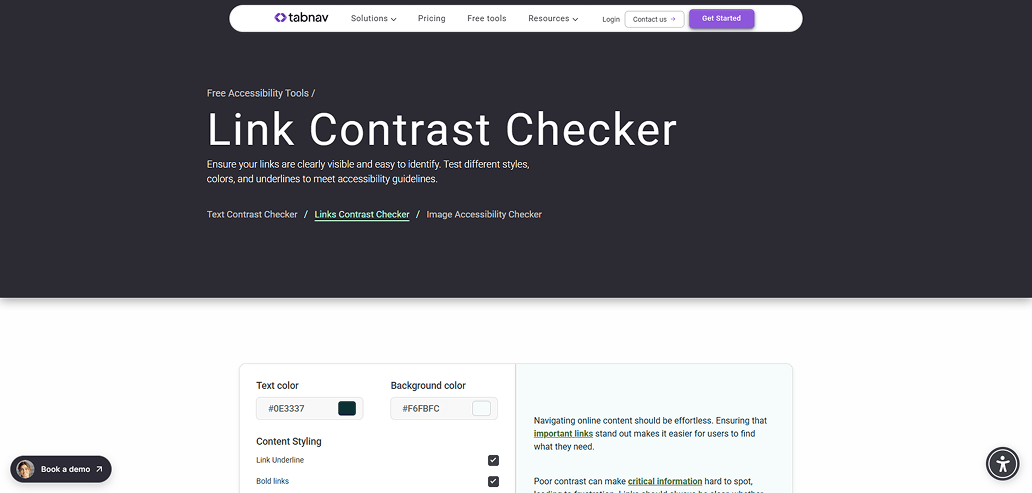
Links are more complex than they look.
Many websites fail accessibility here because links are tested only by color, without considering other factors. A link may pass contrast requirements in one situation and fail in another depending on:
- The background color
- The surrounding text color
- Whether the link is underlined
- Whether it's bolder than the surrounding text
This is where many teams get stuck.
Tabnav's free link contrast testing tool checks all of these conditions together, not just color values.
3. Text on Images and Decorative Backgrounds
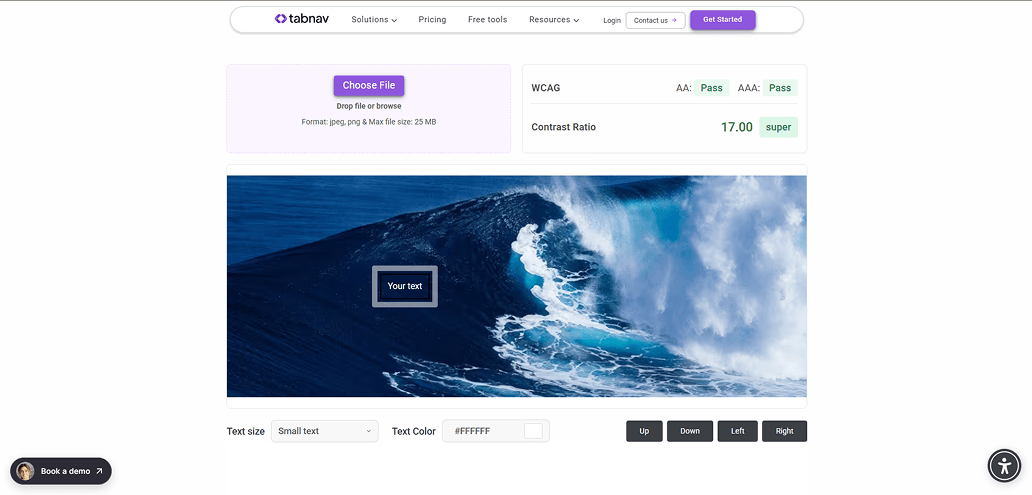
Modern designs often place text on gradients, images, or patterned backgrounds.
It may look great visually, but accessibility-wise, this is one of the easiest ways to fail contrast requirements. A design can look readable to the eye and still fail WCAG contrast rules.
That's why we created a free text-on-image contrast checker.
It helps you test whether text placed on images, gradients, or complex backgrounds meets accessibility requirements before it goes live. This is especially useful for design teams working with marketing banners, hero sections, and promotional visuals.
4. Full Website Accessibility Testing
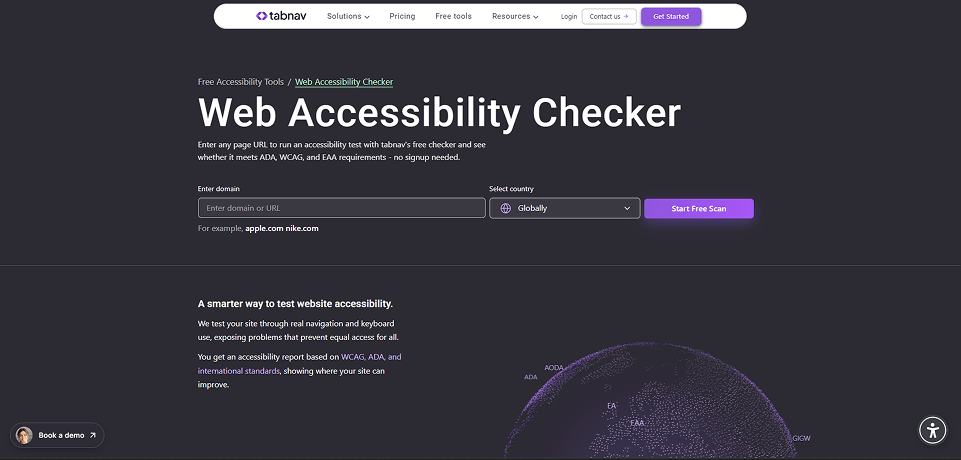
Once you've tested individual elements, the next step is checking how everything works together.
Instead of testing contrast, links, and text placement one by one, you can start with the Tabnav Web Accessibility Checker, which scans your entire website for accessibility issues.
It checks contrast, links, text usage, and other common accessibility problems across your site. You can start with this tool for free and use it as a baseline before moving into deeper testing.
Wrapping Up
Accessibility testing isn't something you do once and forget about. It's an ongoing process that needs to be repeated every time your website changes, whether that's a new page, a design update, or a content edit.
The good news is that you don't need to start with complex audits or deep technical knowledge. Simple checks like contrast, links, and text placement already catch a large percentage of real-world accessibility issues.
As you've seen in this guide, combining manual testing, automated tools, and regular monitoring is what leads to consistent results. That's also how experienced accessibility teams work in practice.
If you're just getting started, begin with the free tools, fix what you can, and build from there. Over time, repeating the right testing steps will help keep your website usable, accessible, and aligned with accessibility standards as it evolves.
Accessibility isn't about perfection. It's about making steady, informed improvements that actually work for real users.

You might also like...